Customizing Market Hours in Volume
Not every trader wants to sit through a full session. Maybe you only trade the first hour after the open. Maybe you skip the lunchtime chop entirely. Maybe futures' overnight session is where your edge actually lives, and the regular equity hours are dead time to you.
Volume's Timeline Configuration lets you define your own pre-market, open, and after-market boundaries — separately for stocks and futures — so the game's skip controls take you straight to the parts of the session you actually want to practice, and skip past the rest.
Step 1: Open Timeline Configuration
- From the gameroom, click Preferences in the top bar.
- Click TIMELINE CONFIGURATION to expand the section.
This is where your custom hours live, per market. If you're in a stocks game, you'll see a card badged STOCKS; in a futures game, a card badged FUTURES.
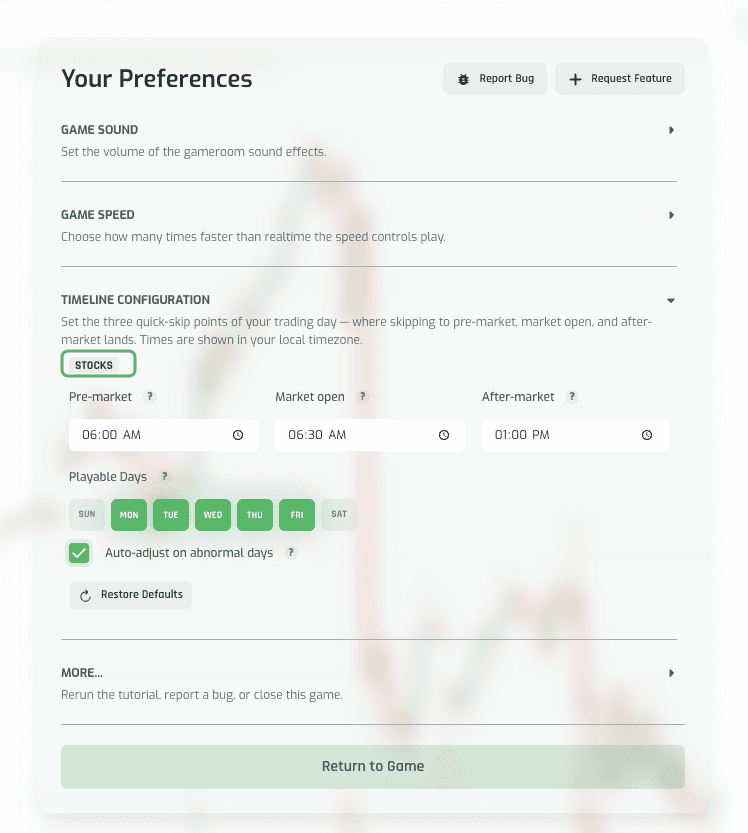
A note on time zones: all three time fields are shown in your machine's local timezone, converted from the underlying Eastern Time values. If you're on the West Coast, the stock market's default 9:00 AM / 9:30 AM / 4:00 PM ET boundaries render as 6:00 AM / 6:30 AM / 1:00 PM. You never have to do the math — just type the time you want to see on your own clock.
Step 2: Edit and save a custom time
- Click into any of the three fields — Pre-market, Market open, or After-market — and type a new time.
- The moment a field (or a day pill) changes, a Discard / Save Changes footer appears next to Restore Defaults.
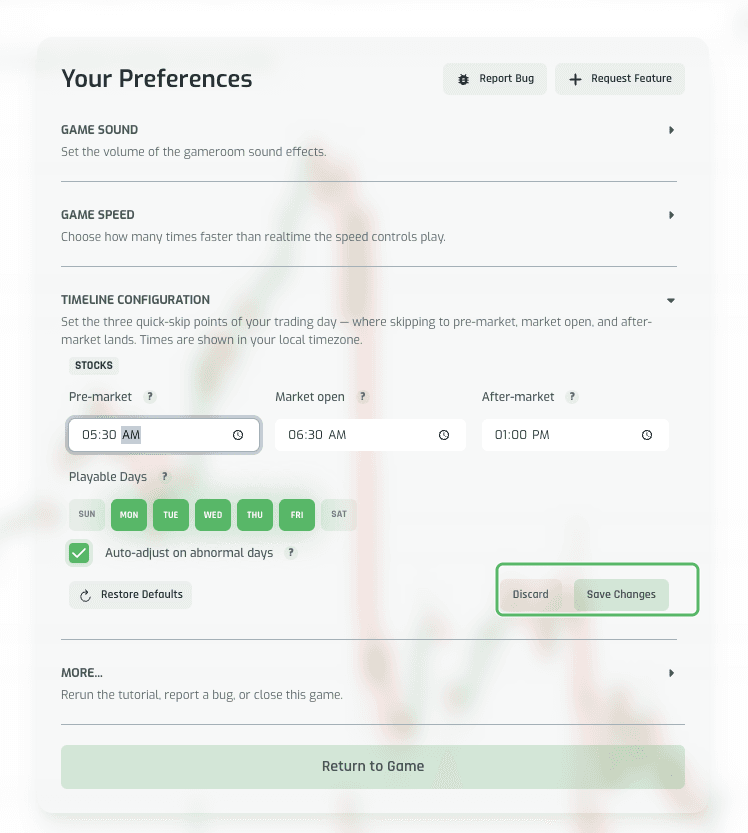
- Click Discard to snap the field back to its last-saved value — no confirmation needed.
- Click Save Changes to persist your edit. The header briefly shows a Saved just now pill, and the Discard/Save footer disappears immediately.
This part matters: only saved changes affect anything else in the game. The skip controls, the timeline markers, and the closed-market warnings all read from your last saved configuration — not whatever you're currently typing into an unsaved field. Edit freely; nothing takes effect until you click Save Changes.
Saved values also persist across sessions — leave the gameroom for the dashboard, come back with Resume Session, and your custom times are still there.
Step 3: Choose your playable days
Below the time fields, Playable Days shows a row of day pills (Sun–Sat). Pressed/filled pills are playable; unpressed pills are off.
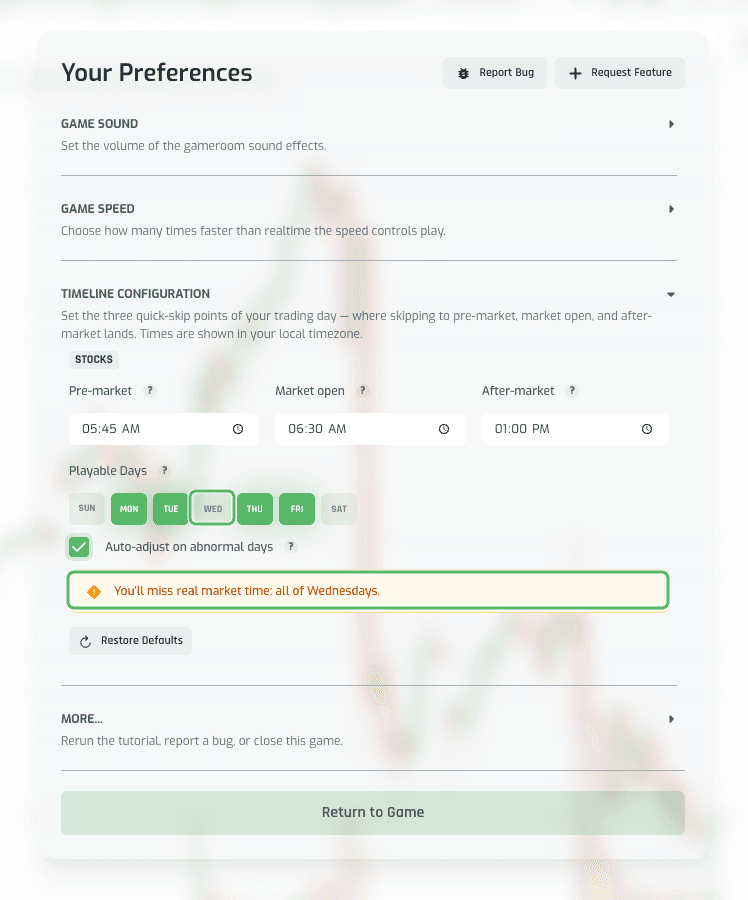
- Click a pressed day pill (for example, WED) to turn that day off.
- Click Save Changes — the unsaved-changes footer clears immediately, no reload required.
Turning a day off doesn't just cosmetically dim it — every skip control in the game (the timeline marker skip and the manual H/M/D skip) will now route around that day entirely, treating it like a weekend.
Step 4: Understand the warnings
As you edit times or playable days, Volume tells you exactly what tradeoff you're making before you save. These warnings are informational, not blocking — you can still save a configuration that shows one.
-
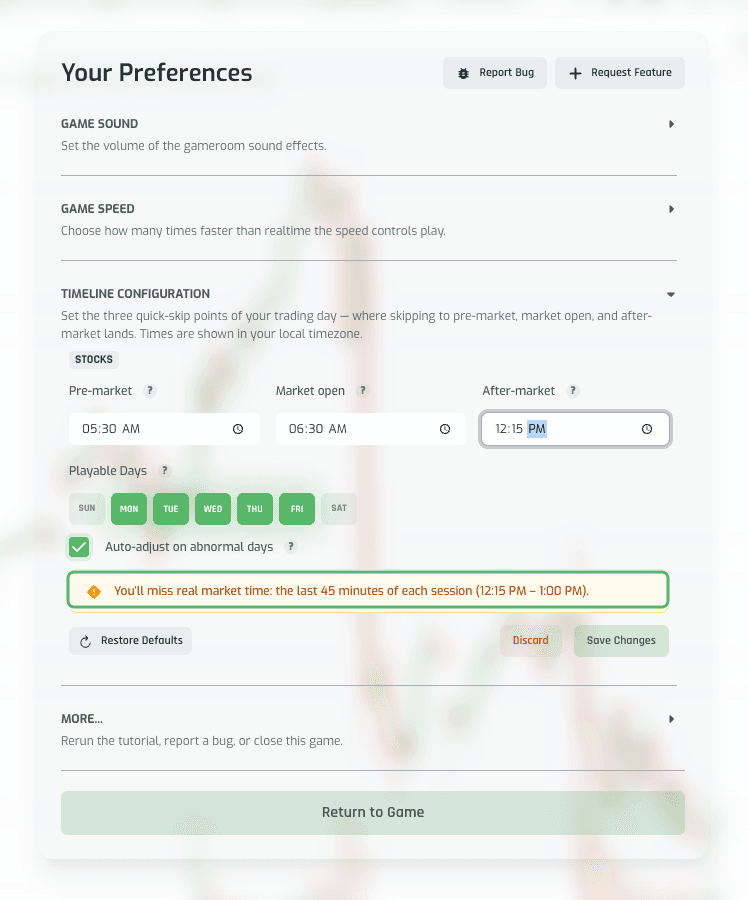
After-market set earlier than the real close: "You'll miss real market time: the last N minutes of each session (start – close)." You're cutting your own session short.
-
After-market set later than the real close: "You'll play through closed market time: close – your time after each close." You're extending your session into hours when the real market is already shut.
-
A weekend day pill enabled (e.g. SAT): "You'll play through closed market time: all of Saturdays."
-
Auto-adjust on abnormal days unchecked: "You'll play through closed market time: early-close afternoons (the market closes at time on those days)." Some sessions close early (half days) — with auto-adjust on, Volume accounts for that automatically; turn it off and you'll trade straight through those early closes.
The same logic applies in reverse for playable days you turn off:
Read these warnings before saving — they're the fastest way to confirm your configuration does what you intend, whether that's compressing your practice window or deliberately trading through conditions you wouldn't normally see.
Step 5: Restore defaults
- Click Restore Defaults — all three times, playable days, and the auto-adjust checkbox reset to the app defaults, as a draft.
- This still requires Save Changes to persist. Restoring defaults doesn't save automatically — the Discard/Save footer stays active until you confirm.
The Futures card: session boundaries and the NYSE preset
Futures markets don't share the stock market's clean 9:30–4:00 window — CME sessions run nearly around the clock, from the prior evening into the next afternoon. The FUTURES card reflects that.
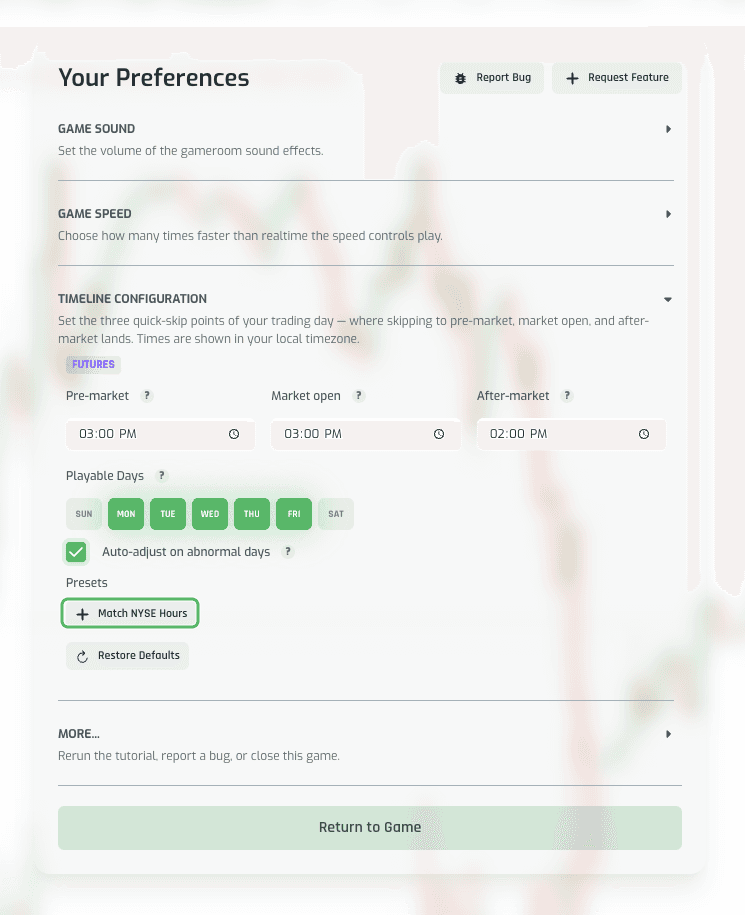
By default, Pre-market and Market open are both set to 18:00 ET and After-market to 17:00 ET — the full CME session, running from the prior evening's open straight through to the next afternoon's close. Playable Days defaults to Monday–Friday.
Using the "Match NYSE Hours" preset
If you'd rather practice futures on equity-style hours instead of the full overnight session, use the preset:
- Under Presets, click Match NYSE Hours (marked with a
+icon). - All three time fields instantly fill with the regular NYSE equity session (9:00 / 9:30 / 4:00 PM ET, converted to your local time) — as an unsaved draft. Nothing is sent to the server yet.
- A warning explains how much real session time this preset skips, phrased in hours — e.g. "the first 15 hours of each session ... and the last 1 hour of each session."
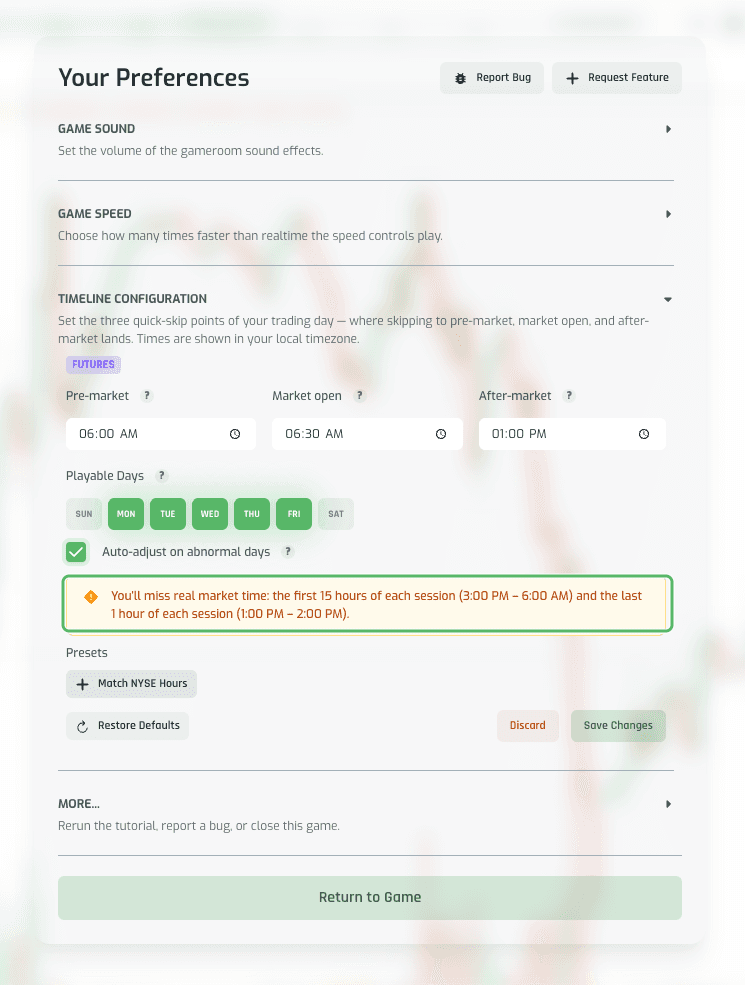
- Click Save Changes to persist the preset. As with any other edit, the header shows Saved just now, and the new times survive a page reload.
The same Discard/Save behavior, playable-day warnings, and Restore Defaults button work identically on the Futures card as on the Stocks card — including the weekend-day warning ("You'll play through closed market time: all of [day]") and a second warning if you set After-market inside the CME's daily maintenance break (17:00–18:00 ET), e.g. "You'll play through closed market time: 2:00 PM – 2:30 PM after each close."
Step 6: How your saved config drives the timeline skip
Once you've saved a configuration, it changes where the game's built-in skip markers land.
- When the market is closed — after-hours, weekend, or a day you've turned off — the timeline shows a red AFTERMARKET (or similarly labeled) marker in place of the normal time-of-day readout.

- Hover over that marker — it reveals a Skip to Premarket label.
- Click it: the game clock jumps straight to your saved custom Pre-market time on the next playable trading day, automatically routing around weekends and any day you've turned off in Playable Days.
This marker skip always uses your last saved configuration — edits sitting in the draft state (not yet saved) have no effect on where it lands.
Manual time skip (H/M/D inputs)
You can also enter minutes, hours, or days directly into the skip inputs next to the play-speed buttons and click the arrow to jump forward. If the destination lands inside a closed window — after hours, a weekend, or a disabled day — the skip is rejected with a toast naming the next open time, and the clock doesn't move. This respects your saved Playable Days and hours the same way the timeline marker skip does.
Why this is worth setting up
A tighter, well-chosen window means less time watching dead charts and more reps in the conditions you actually trade. Whether you're compressing a stock session down to the opening hour, matching futures to equity-style hours with the NYSE preset, or deliberately practicing through a session you'd normally avoid, Timeline Configuration makes sure every skip — automatic or manual — respects the hours you've chosen to trade.