Placing Orders in Volume: Market, Limit, Stop Loss and Take Profit
In your first trade, you opened the ticket, clicked the up arrow, added a stop loss, and hit Confirm Buy. That's a market order — the simplest tool in the box, and the right choice most of the time.
But real trading plans need more than "buy now." Sometimes you want to buy at a price the market hasn't reached yet. Sometimes you want your risk management to run itself while you're not watching. Sometimes you need to scale out of a winning position instead of closing it all at once. Volume supports all of that, and this guide covers every entry point for it — including the ones tucked into the chart itself.
Market Orders: Long and Short
A market order fills immediately at the live price. It's the tool for "I want in right now."
- In the gameroom's Trades card, click New Trade.
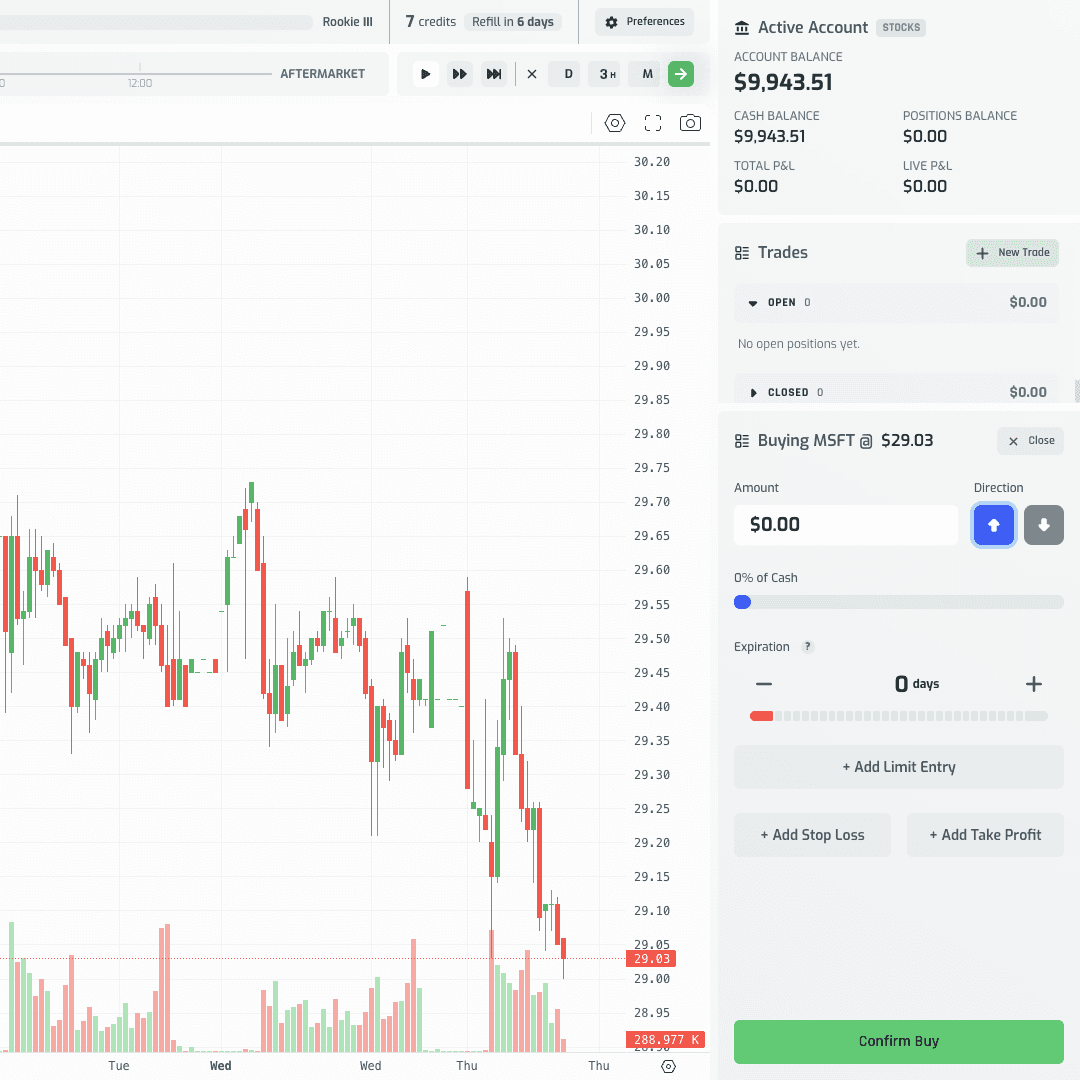
- The ticket opens in buy mode: "Buying {SYMBOL} @ {live price}."
- Enter an amount in the Amount field, or drag the slider beneath it — both stay in sync and show what percent of your cash you're committing.
- Pick a direction with the two buttons next to Amount: the up arrow for long (you expect price to rise), the down arrow for short (you expect price to fall). The ticket header switches between "Buying" and "Shorting," and the Trade Summary shows
LONG(UP)orSHORT(DOWN). - Review the Trade Summary — symbol, direction, amount, expiration, credit cost.
- Click Confirm Buy (or Confirm Short).
The trade fills instantly, the ticket resets, and the new position appears in the Open table right away. An entry marker line is drawn on the chart at your fill price — give it a couple of seconds to appear.
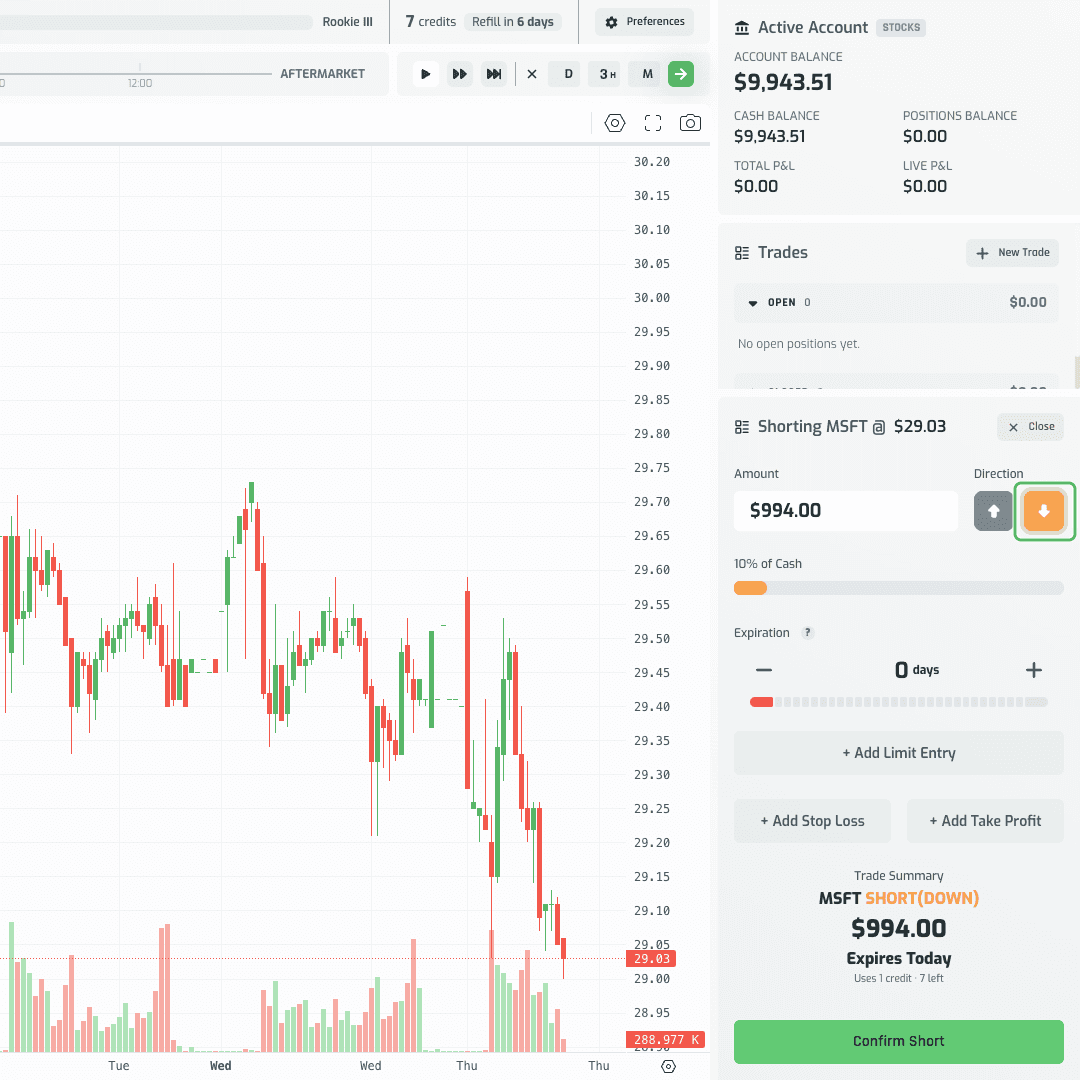
A safety net worth knowing about: if you type an amount that exceeds your available cash, the field automatically snaps down to the maximum you can afford rather than letting you submit an invalid order.
Limit Orders: Buy the Dip Without Watching It
A limit order doesn't fill now — it waits at a price you choose and fills automatically if the market gets there. Use it when your plan is "I'll buy if it pulls back to support" rather than "I'll buy right now."
Volume gives you two ways to place one: from the trade ticket, or directly from the chart.
From the trade ticket
- Click New Trade to open the ticket.
- Enter an Amount and pick a Direction, same as a market order.
- Click + Add Limit Entry. A "Limit Entry" price field appears, pre-filled with the current live price. The ticket header changes to "Buy Limit" (or "Sell Limit"), and the confirm button becomes Place Limit Order (or Place Short Limit).
- Edit the Limit Entry price to your target: below the live price for a long (buying a dip), above it for a short (selling a rally).
- Optionally attach a Stop Loss and Take Profit — these seed relative to your chosen entry price, not the current live price, since the order hasn't filled yet.
- Click Place Limit Order.
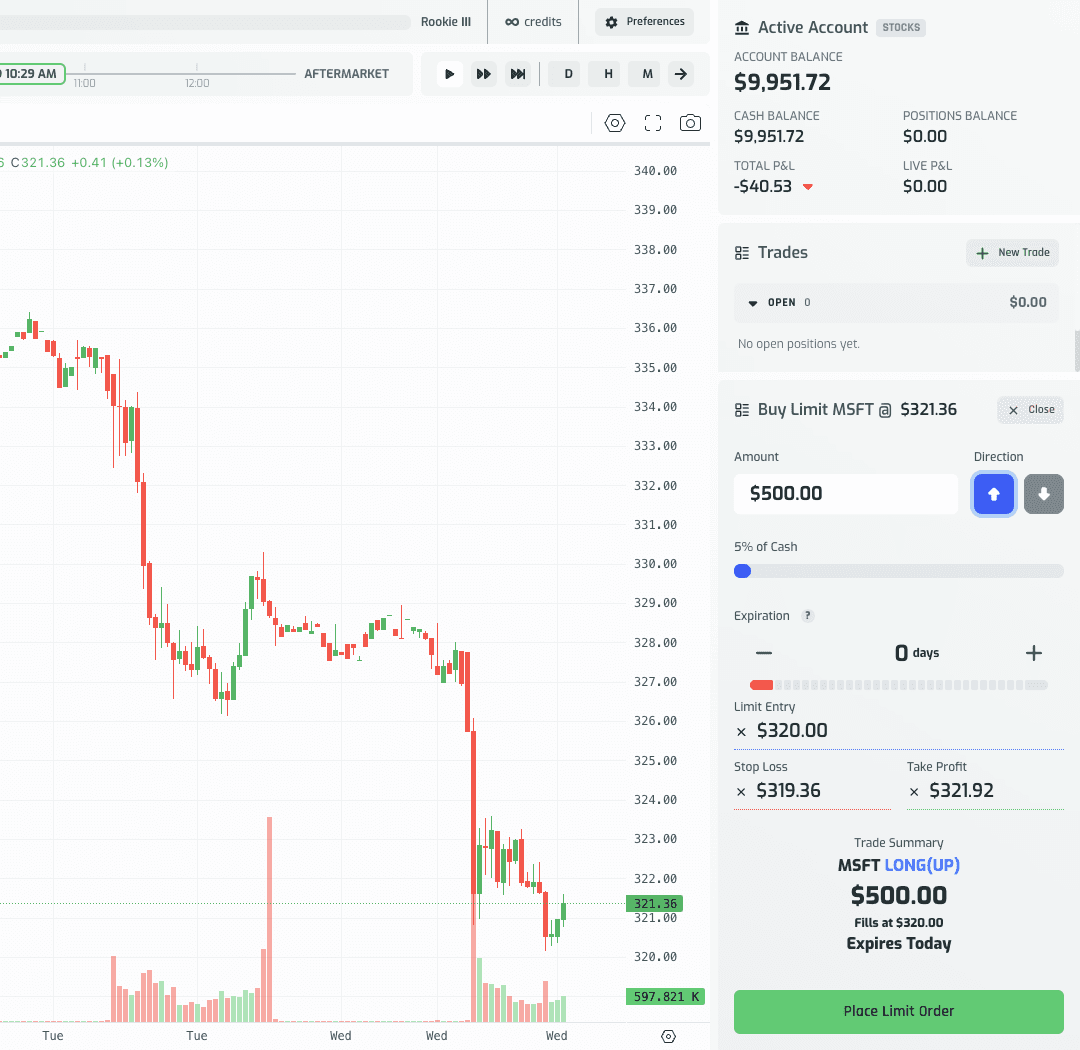
No position opens and no cash moves yet. The order sits pending in the Orders group of the Trades card, between Open and Closed, showing the symbol, direction arrow, entry price, and amount. On the chart, a dashed "Long Entry" (or "Short Entry") line appears at the entry price within a couple of seconds, labeled with the order's dollar amount.
From the chart
You can also set a limit order by pointing at exactly where you want it on the price axis — useful when you're marking a level visually rather than typing a number.
- Right-click anywhere on the chart's price pane (not on the price axis itself) at the price you want.
- A context menu appears with "Create Limit Order at $X", where $X is the price under your cursor, rounded to the symbol's price precision.
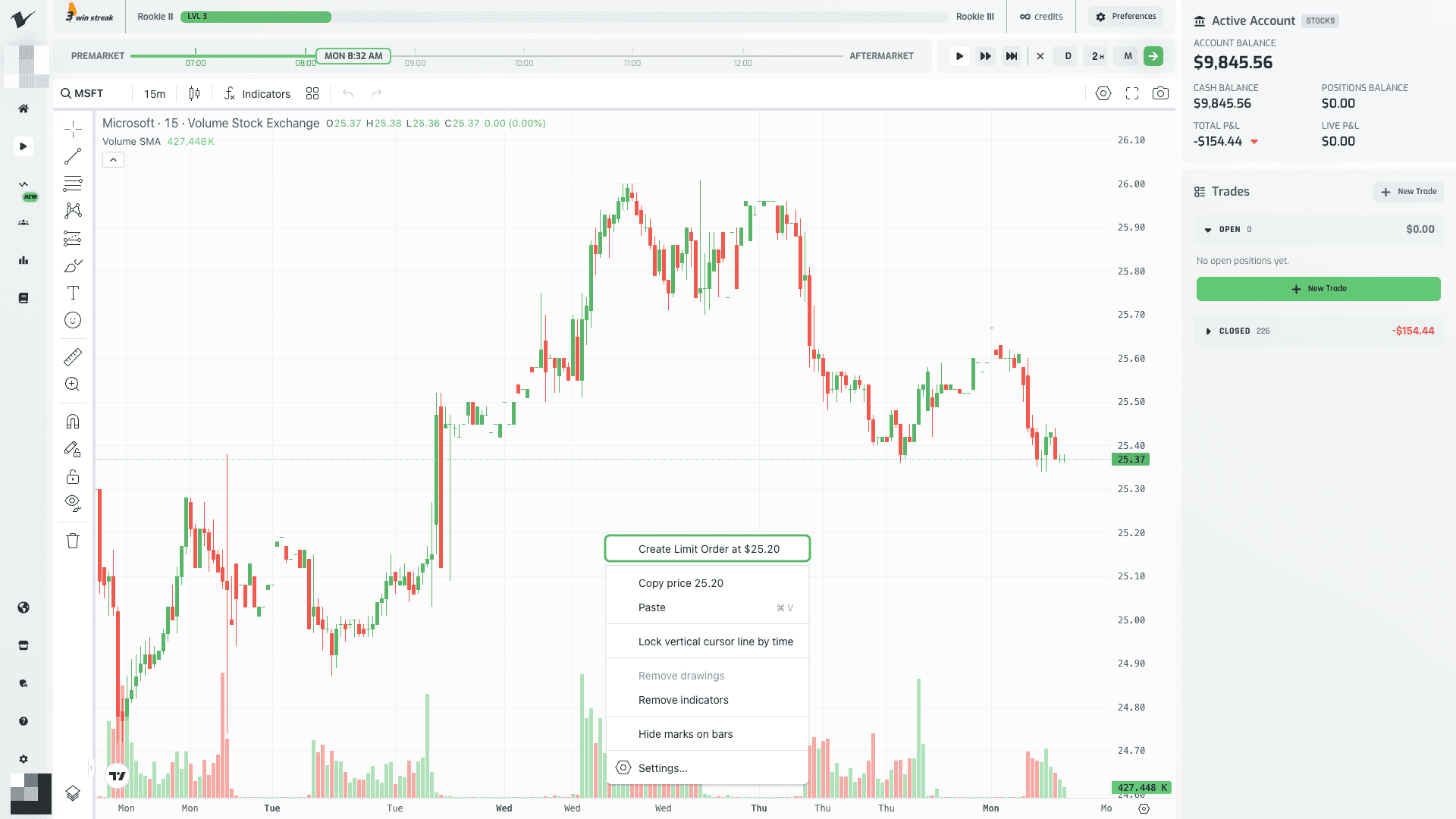
- Click it. The trade ticket opens with the Limit Entry field pre-filled to that exact price.
- Enter an Amount — the ticket needs a non-zero amount before it can be placed.
- To make it a short instead, click the down-arrow Direction button; the entry price and ticket header update to match.
- Click Place Limit Order (or Place Short Limit).
While the ticket is still a draft, a gray Draft Limit Entry line shows the price you are working with. Dragging it updates the ticket and carries any drafted Stop Loss/Take Profit by the same offset. On mobile, tap Peek chart, tap the line once to activate it, and then drag; an anchored hint above the line reminds you of that two-step gesture.
The dashed entry line appears on the chart at your order price, labeled with the amount — blue for a long entry, orange for a short.
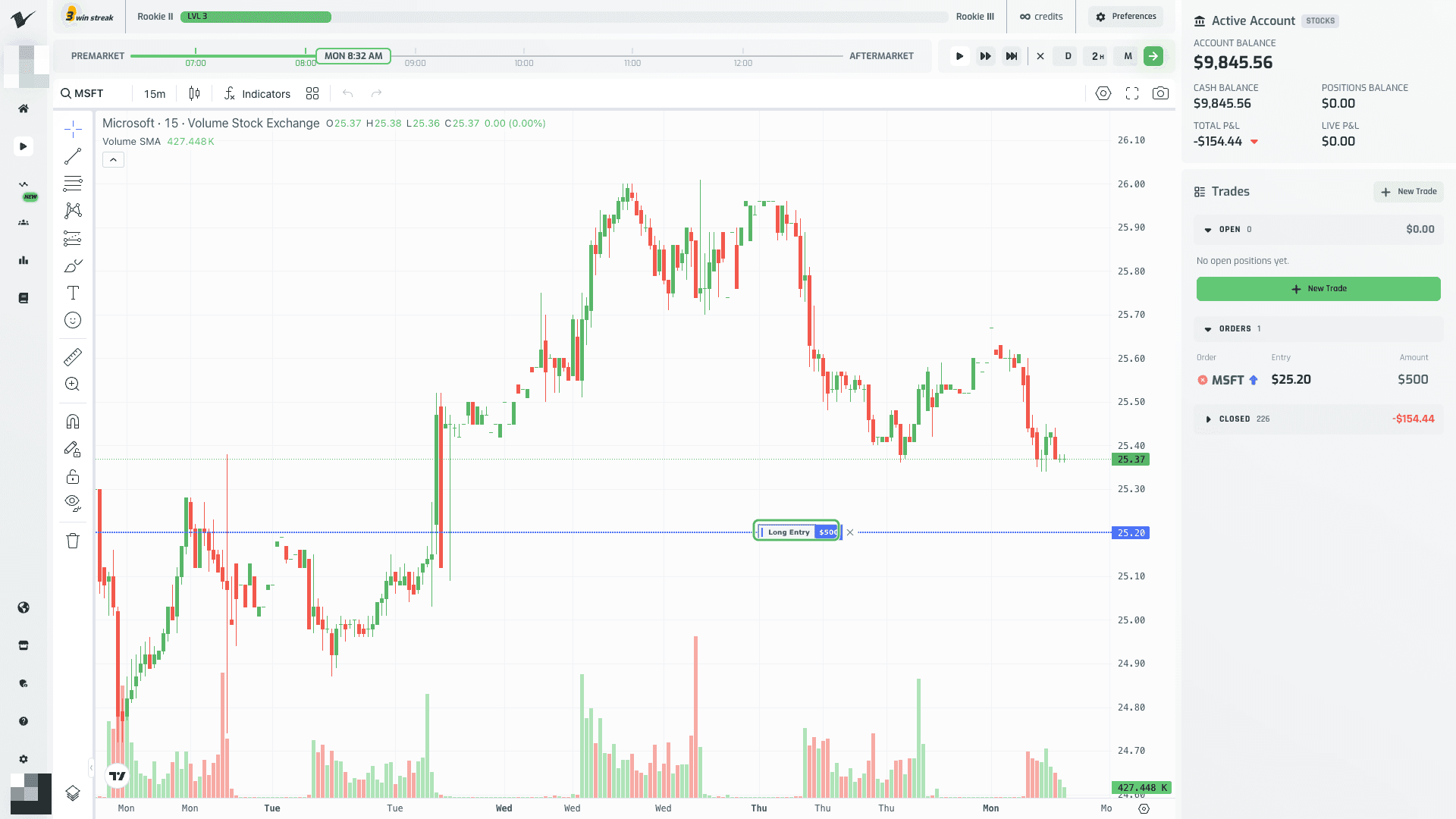
That line only shows up on its own symbol's chart — switch symbols and it's gone; switch back and it's there. It also survives timeframe changes and zooming, so you can check on a pending order at any interval.
Reserved cash
While a limit order is pending, its cost is reserved. If you open a fresh ticket to place another trade, the maximum amount you can enter is your cash balance minus the cost of everything you already have pending — so you can't accidentally over-commit cash across multiple orders.
Modifying and Cancelling a Pending Limit Order
Plans change before price gets there. Volume lets you reprice or cancel a pending order from either the chart or the ticket.
Reprice from the chart: click and drag the order line's label (not just the thin dashed line) up or down, then release. This moves the entry AND shifts any attached Stop Loss/Take Profit by the same offset, preserving your original risk/reward setup.
Reprice from the ticket: click the order's row in the Orders group (or click the order line's body on the chart) to open it in "Edit Limit Order" mode. Edit the Limit Entry, Stop Loss, or Take Profit field and click the green checkmark next to it to save.
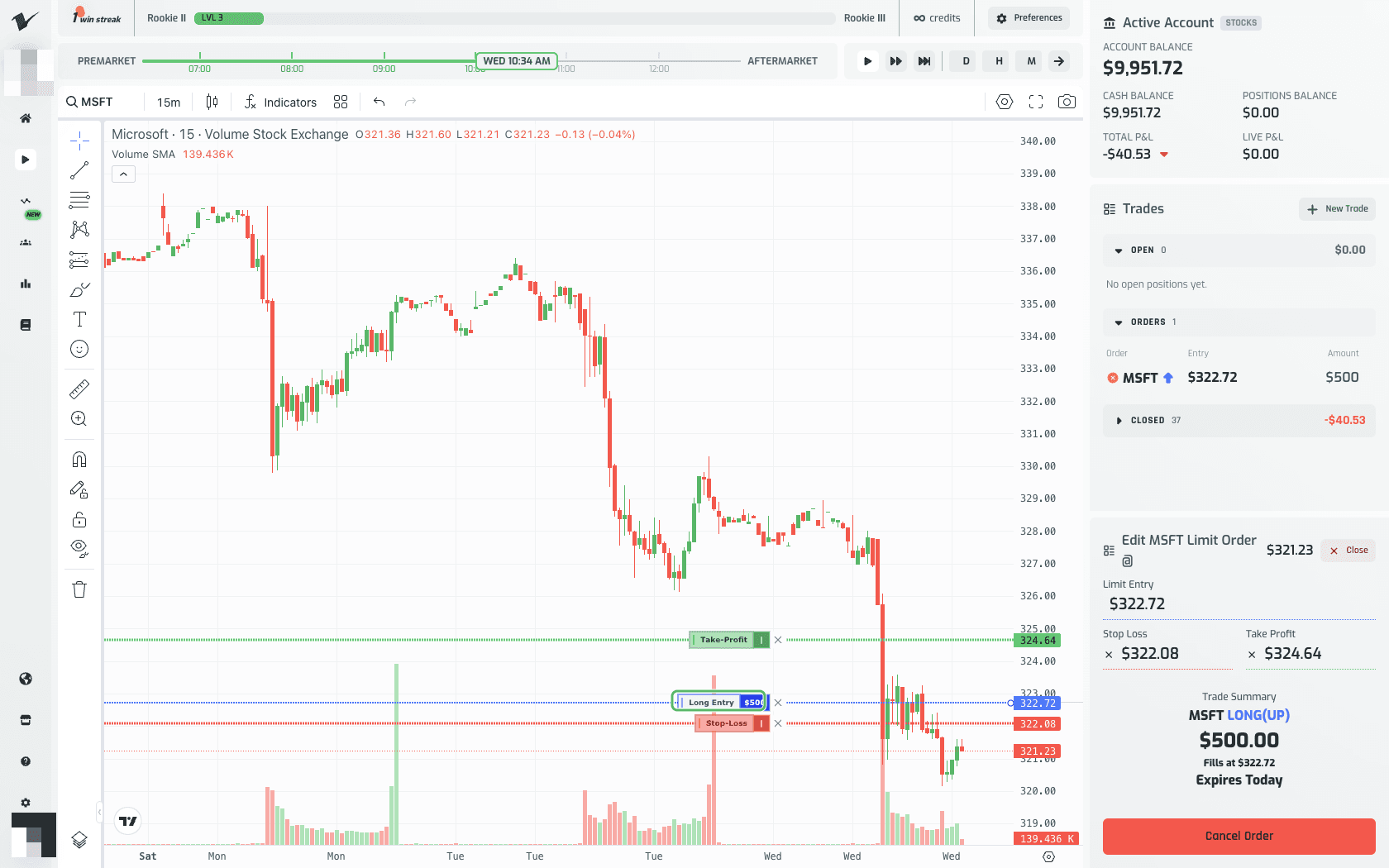
One distinction worth knowing: editing the entry price from the ticket only changes that one field — it does not shift SL/TP along with it. Only a chart drag moves the whole bracket together. If you type an entry price that's invalid (for example, beyond the order's own Take Profit), an inline "Invalid Limit Entry price" warning appears and the save is rejected.
Cancelling:
- From the chart: click the small X on the order's dashed line.
- From the Orders group: click the red cancel icon on the order's row.
- From the open ticket: click Cancel Order.
Any of these removes the order and its chart line immediately — no confirmation needed.
When it fills
Once price touches your entry level on a later bar (not the same bar you placed it on, and only while the market is open), the order fills automatically: a position opens at your exact entry price, any attached Stop Loss/Take Profit carries over, a "Limit order filled" toast appears, and the dashed entry line is replaced by a solid open-position entry line.
Stop Loss and Take Profit
These are your exit orders — a Stop Loss caps your downside, a Take Profit locks in a target gain. Both can be attached when you open a trade, or added afterward to a position that's already live.
Attaching them at entry
- Open the trade ticket and set your Amount and Direction.
- Click + Add Stop Loss — a default level seeds automatically about 0.2% away from the live price, on the losing side of your direction (below price for a long, above for a short).
- Click + Add Take Profit — a default level seeds about 0.6% away, on the winning side (above price for a long, below for a short).
- Edit either price directly if you want a different level.
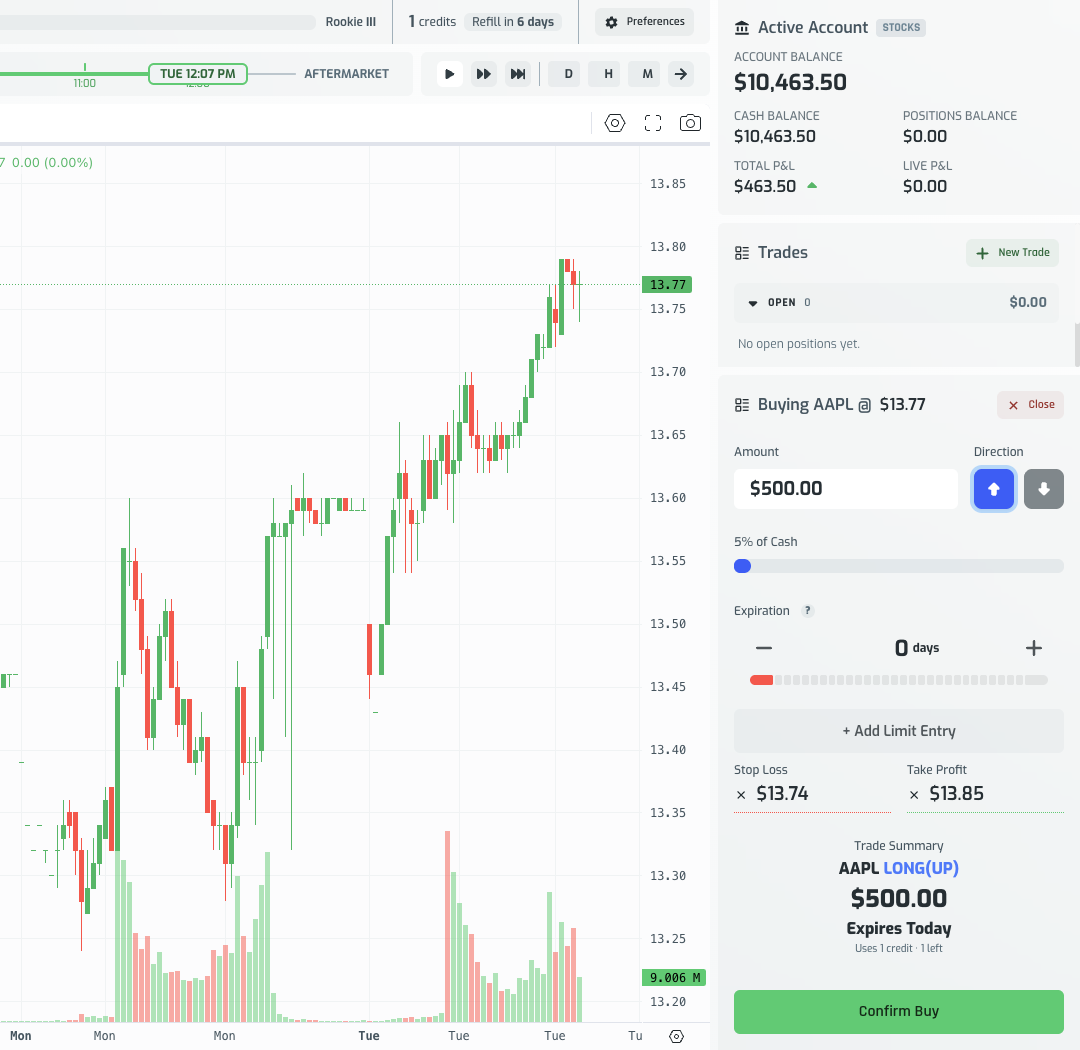
A level on the wrong side of the live price (e.g., a Take Profit below the current price on a long) shows an inline "Invalid Stop Loss level" / "Invalid Take Profit level" message, and the trade won't submit until it's fixed.
- Click Confirm Buy (or Confirm Sell) to open the position with both levels attached.
Seeing them on the chart
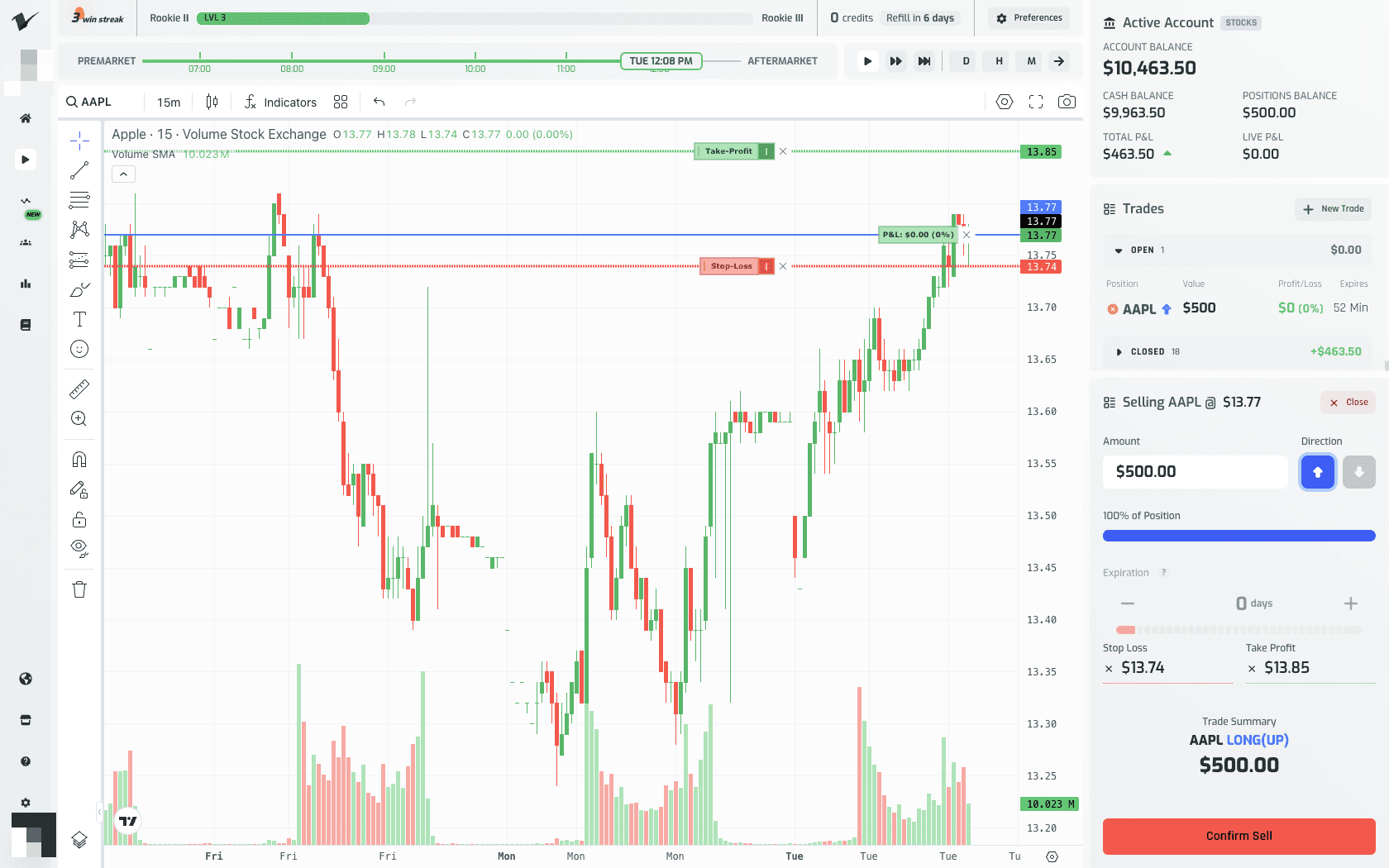
Click an open position's row in the Trades panel to make it the active position — this opens its ticket and also draws its levels on the chart. Only the active position's Stop Loss/Take Profit lines show, keeping the chart uncluttered when you have several positions open: a dashed red Stop-Loss line and a dashed green Take-Profit line, each labeled with its price.
Adjusting them by dragging the chart line
With the position active, grab the small handle next to the Take-Profit or Stop-Loss label and drag it to a new price. Drop it somewhere invalid (say, a Take Profit below the current price on a long) and a toast explains why, then the line snaps back to its last valid price. Drop it on a valid price and the new level saves automatically.
Adding, editing, or removing on an existing position
- To cancel: with the position active, click the X next to the Stop-Loss or Take-Profit label on its chart line. The line disappears and the ticket's field for it clears immediately.
- To add or edit from the ticket: click the position's row to open its ticket. If no level is set, click + Add Stop Loss / + Add Take Profit to seed one; if one exists, edit the price field and click the checkmark icon next to it to save. The new level applies instantly, and its chart line updates once the position is active.
When price hits it
As the game clock advances — at any play speed — once a candle's high or low crosses your Take-Profit or Stop-Loss level, the position closes automatically. You'll see a P&L popup and hear a confirmation sound, and the position moves from Open to Closed with the realized profit or loss.
Closing a Position
There's more than one way to exit, depending on how much control you want.
Full ticket, with the option to scale out: click anywhere on the position's row in the Open table. The ticket reopens in sell mode ("Selling {SYMBOL} @ {live price}"), prefilled to 100% of the position's current value.
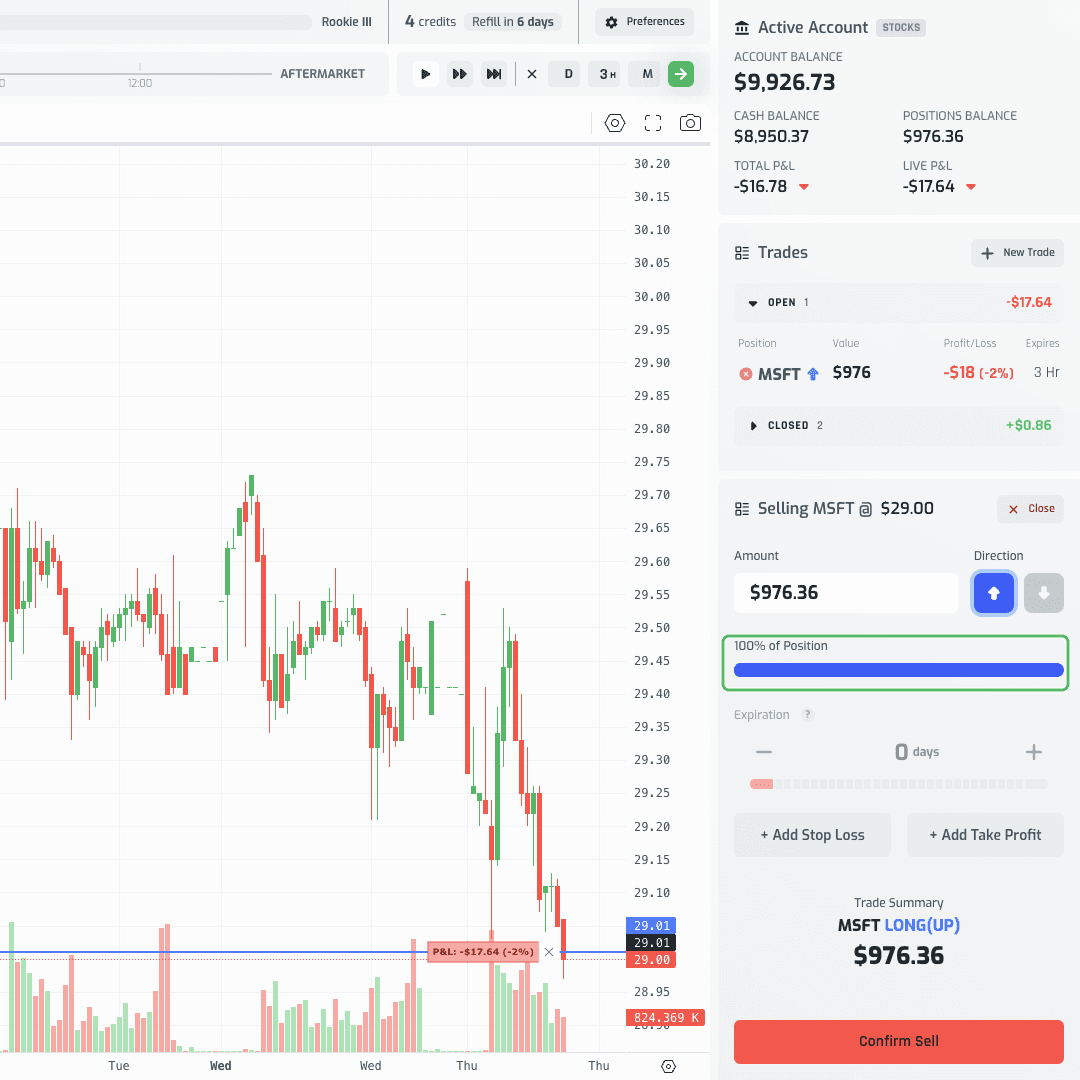
Adjust the amount or slider if you only want to sell part of the position — useful for scaling out of a winner gradually instead of closing all at once. Click Confirm Sell. If you sold everything, a result toast ("Trade Won," "Break Even," etc.) appears with a Create Journal Entry shortcut; if you sold part, the position's value in the table simply reduces to match what's left.
Instant full close: click the red circular close icon at the left edge of the position's row in the Open table — no need to open the ticket at all. The position closes immediately at market price, your cash balance updates, and a result toast appears (e.g. "Trade Won MSFT +$0.86").
Close everything at once: when you have two or more positions open, a Close All button appears above the Open table.
From the chart: click on the entry line — the horizontal line marking your entry price — to open the close panel directly.
Whichever way you close, the position moves from Open to Closed in the Trades card, and Volume will prompt you to journal the trade, just as it did after your first one.
Quick Reference
| I want to... | Do this |
|---|---|
| Buy or short right now | New Trade → set amount/direction → Confirm Buy/Short |
| Buy/short at a price I choose | New Trade → + Add Limit Entry → set price → Place Limit Order |
| Place a limit order visually | Right-click the chart → Create Limit Order at $X |
| Cap my downside on entry | + Add Stop Loss in the ticket before confirming |
| Lock in a target gain on entry | + Add Take Profit in the ticket before confirming |
| Move a pending order and its brackets | Drag the order line's label on the chart |
| Change just the entry price | Edit the order's ticket, then click the checkmark |
| Cancel a pending order | X on the chart line, or the cancel icon in the Orders group |
| Adjust SL/TP on a live position | Drag the chart line's handle, or edit the field in the ticket |
| Exit part of a position | Click the position row → adjust the sell slider → Confirm Sell |
| Exit a position instantly | Click the red close icon on the position's row |
| Exit everything | Close All (visible with 2+ open positions) |
Every order type here exists to turn a vague plan into a rule the platform enforces for you. Attach the stop loss before you enter, set the limit order instead of watching the screen, and let Volume do the waiting.