How to Practice Trading With an AI Assistant (Claude + MCP)
An AI trading assistant is useful in the same way a sparring partner is useful. It will not tell you what the market does next, but it will read the same chart you are reading, say what it sees out loud, and make decisions you can pick apart afterwards. That makes it a good tool for practice.
Volume lets you connect your own AI (Claude, ChatGPT, Cursor, Claude Code or any other MCP client) to your account and to a practice session in the gameroom. Sessions replay real historical market data on a virtual balance you choose, anywhere from $100 to $50,000. No real money is involved and no trade is ever executed for real.
This guide covers what an AI assistant can honestly do for your trading practice, how to connect it, what it actually sees, and three drills to run with it.
What an AI Trading Assistant Can and Cannot Do
Start with honest expectations.
What it can do:
- Read a chart screenshot and price data and describe structure, trend, ranges and indicator readings
- Explain its reasoning in plain language before and after each decision
- Open, adjust and close practice positions with a stop loss and take profit, inside a session you approve
- Pull your stats and journal to help you run a structured review
What it cannot do:
- Predict markets. A language model reasoning about a chart is making an educated read, just like you. It is often wrong.
- Generate returns. Its practice P&L reflects one run on one replayed chart, nothing more.
- Touch real money. Volume is a simulation on historical data. The AI only ever trades your virtual balance.
The value is in the comparison. When the AI's read differs from yours, you have something specific to think about.
Step 1: Connect Your AI
Connecting an AI is a Pro feature. You can set it up from two places, and both show the same instructions.
From Settings
Go to Settings and scroll to the AI agents card.
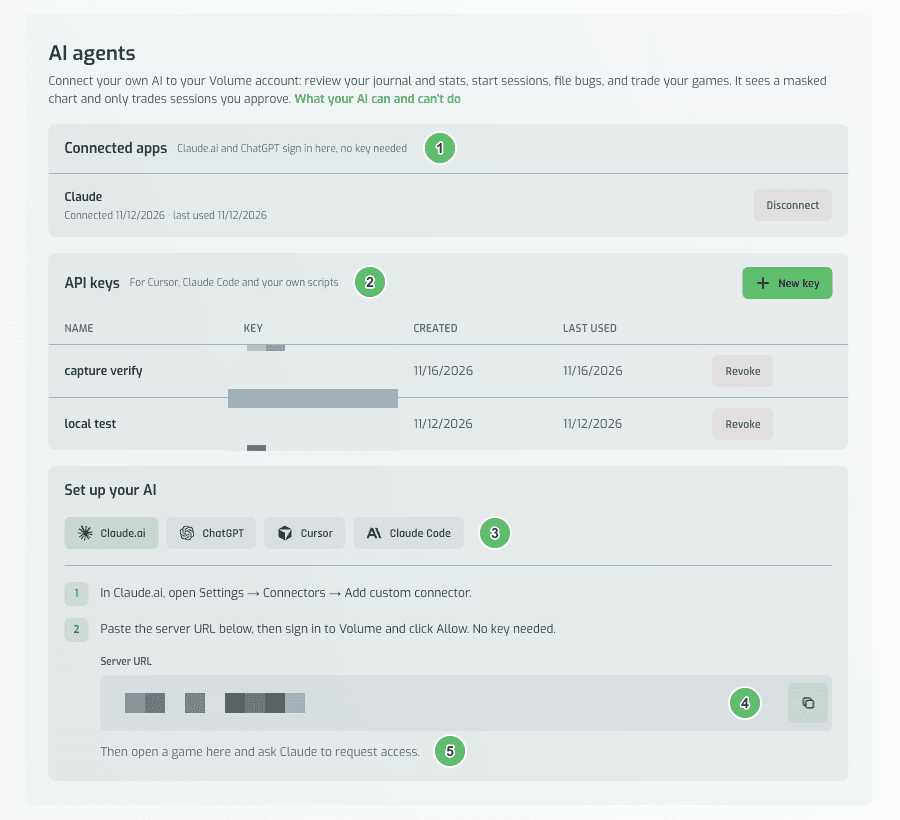
What you're seeing:
- Connected apps: Claude.ai and ChatGPT sign in through Volume directly, no key needed. Connected apps are listed here with a Disconnect button.
- API keys: for Cursor, Claude Code and your own scripts. Create a named key with New key; the full key is shown once, and each key can be revoked at any time.
- Client picker: choose Claude.ai, ChatGPT, Cursor or Claude Code to see the matching setup steps.
- Server URL: the address of Volume's hosted MCP server. Copy it with the button on the right.
- Next step: once connected, open a game and ask your AI to request access.
For Claude.ai, the steps are: open Settings, then Connectors, then Add custom connector. Paste the server URL, sign in to Volume when prompted and click Allow. For Cursor or Claude Code, create an API key first. A key you create from the setup panel is filled into the config snippet or terminal command for you; otherwise, paste your key in place of the placeholder.
From the gameroom
If you are already in a session, open Preferences and expand the AI AGENT section.
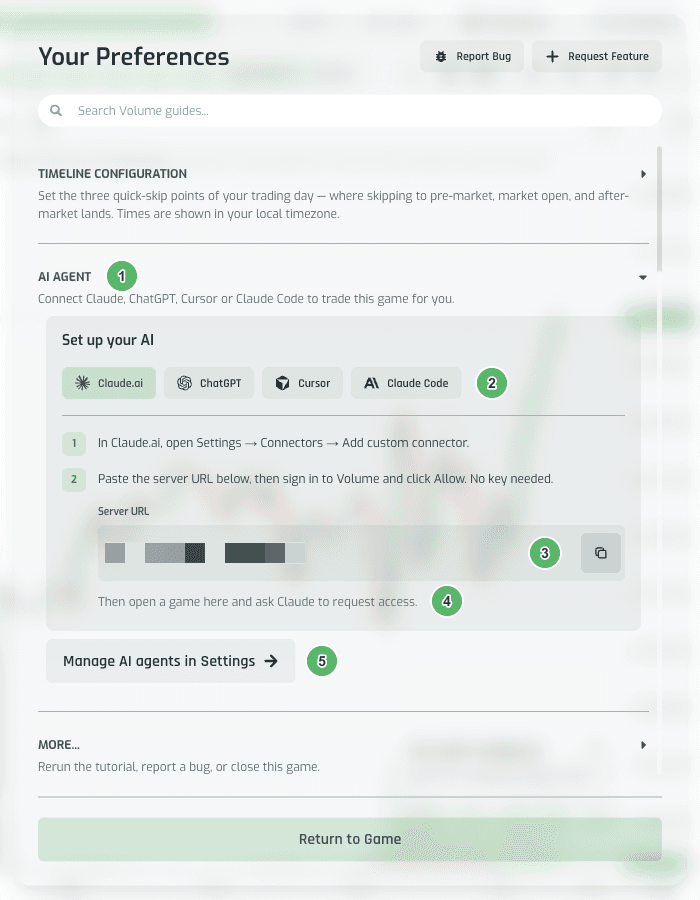
What you're seeing:
- AI AGENT section: the same setup, available without leaving your game
- Client picker: switch between Claude.ai, ChatGPT, Cursor and Claude Code
- Server URL: copy it into your AI client's connector settings
- Next step reminder: ask your AI to request access to this game
- Manage AI agents in Settings: jumps to the full keys and connected apps list
Step 2: Approve the Session
Connecting your AI gives it access to your account, but not to trading inside a game. For that, it has to ask.
With the gameroom open, tell your AI something like "request access to my Volume game." It calls the request_access tool, and an Allow AI trading? prompt appears in your gameroom. The prompt shows three guarantees:
- Masked chart: the AI cannot see the ticker or the dates
- No future bars: it only sees data up to the current game clock
- Off leaderboards: the game is marked AI-assisted and does not count toward leaderboards
Click Allow to let it open, modify and close positions in this game, or Deny (pressing Esc also denies). Approval is per game, and you can revoke it any time from the AI status button in the gameroom. Trades the AI makes are tracked separately from your own stats and earn no XP.
What the AI Sees (and What Stays Hidden)
Volume masks the instrument so the AI has to read the chart, not recall history.
| The AI sees | What stays hidden |
|---|---|
The symbol ASSET | The real ticker |
| The market type (stocks, futures, forex) for session rules | Anything that identifies the specific instrument |
| A bar index, weekday and ET clock time | The date and year |
| Rescaled prices (OHLC, entries, stops, targets) | Real price levels |
| Rescaled volume | Real volume |
| Your real dollar balance, cost and P&L | Nothing; dollars reveal nothing about the instrument |
| A screenshot of your chart with legend and axes cropped | The legend, price axis and time axis |
| Bars up to the current game clock | Every bar after it |
When the AI calls observe, it gets that cropped chart screenshot (your indicators and its own drawings included) plus the bars as JSON for exact levels. The game does not move on its own while the AI is working: time only advances when it calls advance, and the game pauses again when that step finishes. That gives both of you as long as you need to think between bars.
Three Practice Drills
Drill 1: Have the AI Narrate a Chart
Before the AI trades anything, use it as a second pair of eyes.
- Write your own read of the chart first: trend, key levels, and what would change your mind.
- Ask the AI to
observeand describe what it sees. Ask it to mark its levels withannotate, so they appear directly on your chart. - Compare. Where you agree, ask what would invalidate the read. Where you disagree, ask it to justify its view using specific bars.
Then advance a few bars and check who read the structure better. Keep score over several sessions. The goal is not to defer to the AI. It is to find the patterns you consistently miss or overweight.
Drill 2: Let It Trade a Session With a Stop and Target
Next, watch the AI follow a process.
- Give it rules up front. For example: risk no more than 1% of the balance per trade, every position must have a stop loss and take profit, and no more than three trades this session.
- Let it open positions with
open_position, adjust them withupdate_positionand step through time withadvance. - Ask it to post its reasoning with
notebefore each entry and exit. Notes show in the gameroom overlay as it trades. - When a trade closes, have it write a journal entry with
write_journal_entry.
Afterwards, read the notes and journal entries like a coach. Did it follow its own rules? Were stops placed at levels that made sense on the chart, or at arbitrary distances? Your own journal is the right place to record what you learned from watching.
Drill 3: Run a Weekly Review With Account Tools
Account tools work without the gameroom open and never need session approval.
- Ask for
daily_briefingto see where things stand. - Pull
get_performancefor your win rate, P&L, time in trades and P&L per minute of game time. - Use
list_journalandget_journal_entryto go through the week's trades, andreview_gamefor closed games. - Ask the AI to find one recurring mistake and one habit worth keeping, then add the takeaway to the relevant journal entry with
update_journal_entry.
A focused review once a week does more for your skill than another dozen unreviewed trades.
Everything Else Your AI Can Do
The same connection covers your whole account. Tools are grouped by area:
- Accounts and sessions:
list_accounts,create_account,start_game,quick_play,close_game,get_credits - Journal and stats:
get_performance,list_journal,get_journal_entry,write_journal_entry,update_journal_entry,list_games,get_game,review_game - Leaderboards and profile:
get_leaderboard,my_rank,get_profile,get_referral - Guides and preferences:
search_guides,read_guide,list_guide_categories,get_account_preferences,set_account_preferences,whoami,daily_briefing - Feedback:
report_bug,request_feature,list_bugs,upvote_bug,contact_support
In the gameroom, after approval, it also has status, observe, advance, open_position, update_position, close_position, note, annotate, remove_annotation and set_chart_preferences. Destructive account operations such as deleting accounts, payouts or checkout are not available to the AI.
FAQ
Does the AI trade real money?
Never. Volume replays real historical market data, but every trade is simulated on a virtual balance you choose. The AI can only act inside your practice account.
Can the AI predict where the market is going?
No. It reasons about the chart in front of it the same way a person does, and it is frequently wrong. Treat its read as a second opinion to test, not a signal to follow.
Do I need an API key to connect Claude?
Not for Claude.ai or ChatGPT. They sign in through Volume and you click Allow. Cursor, Claude Code and custom scripts use an API key you create in Settings.
Will AI-assisted trades affect my leaderboard ranking?
No. Games the AI trades are marked AI-assisted and excluded from leaderboards. Its trades are tracked separately from your own stats and earn no XP.
Start Practicing With Your AI
The best use of an AI trading assistant is to make your own thinking visible: compare reads, watch a rule-based process play out, and review your results with more structure. If you have not placed a trade in Volume yet, start with How to Make Your First Trade.
See exactly what your AI can and can't do, and how to connect it, on the Volume AI page.